
CoinMarketCap and CoinGecko price alerts: how they work
CoinGecko and CoinMarketCap both send price alerts from their mobile apps, set on a coin whose price is an average across many exchanges; neither describes an alert on one exchange’s pair. CoinGecko’s help pages show how to set one, and its app also creates Auto Price Alerts for coins you only searched for, which you can switch off. CoinMarketCap lists price alerts among its app’s features, but we found no article in its help centre on setting one.
We make Crypto Alerts & Alarms, an Android price alert app, and we are not affiliated with CoinGecko or CoinMarketCap. Everything about them on this page comes from their own help centres, guides, product pages and app store listings, linked where it is used and checked on 28 October 2026. We quote what they say; we have not tried the steps on a phone.
Android only for now. An iPhone version is in development.
How to set a price alert on CoinGecko
On its website, CoinGecko’s help centre describes it like this:
- On CoinGecko.com, click the “alarm” button on the coin you want an alert for.
- Enter “a custom number”, or “quickly choose a set percentage”.
- You then get “a price notification once the price hits the level that you have set.”
In the app, CoinGecko’s guide from June 2025 says to search for the coin, tap the star at the top right to add it to your portfolio, then tap “Set Alert”, enter your target price and save. Its May 2024 guide describes a bell icon at the top right of the coin’s page instead, where you set a target price and choose “Once” or “Recurring”, which sends an alert “every time the coin reaches your target price”. That guide adds that “you’ll need a CoinGecko account to set price alerts”. The two guides name different buttons, so the app in front of you may differ from both.
In the app, the alert arrives as a notification on your phone: in CoinGecko’s words, “you receive an instant notification on your mobile device”. Its App Store listing also mentions “large mover price alerts” for coins in your watchlist, on top of the alerts you set.
Alerts you never set: CoinGecko’s Auto Price Alerts
The CoinGecko app can also alert you about coins you never set an alert on. Its help centre calls these Auto Price Alerts. When you search for a coin in the app and tap the result, CoinGecko says it will “automatically set up a price alert in the background” and send “a push notification when the coin makes a major move”. The same page says:
- They are on by default, in your notification settings.
- They expire on their own. Searching for the coin again subscribes you again.
- Searching on the website counts too: the alerts go to your mobile app if you are logged in.
- No doubles: if you already follow the coin with a Price Movement Alert, you get one notification, not two.
How to turn them off
- For every coin: go to Settings, then Notification Center, and toggle off “Auto Price Alerts”. That unsubscribes you from all of them and stops new ones.
- For one coin: open one of that coin’s alerts and tap “Don’t remind me again” on the sheet at the bottom. CoinGecko says it is changing that label to “Don’t notify me about” plus the coin’s name. Other coins keep theirs.
One catch from the same page: switching off the app’s notifications on your phone unsubscribes you from Auto Price Alerts, and they stay off after you switch notifications back on, until you toggle them on again in the app.
Price alerts on CoinMarketCap: what its own pages say
CoinMarketCap’s app has price alerts. Its help centre lists “price alerts” among the mobile app’s features, and its App Store listing says to “Customize the price (in your preferred cryptocurrency) and you will be notified when your crypto prices targets are met!”
What we could not find, as of 28 October 2026, is a help article on setting one: none of the 84 articles in its help centre’s sitemap covers it, a search of the help centre for “price alert” finds none, and the Academy article and store listings that mention the feature do not give the steps. We do not guess another app’s menus, so this page gives none for CoinMarketCap.
Its help centre does say where to change which notifications you get. In the app, or on the website once logged in, click your avatar at the top right, choose Settings and go to the Notifications section, where you toggle each option on or off to receive alerts, updates or news. If its alerts stop arriving, check those options and that your phone still allows the app’s notifications.
Two other features carry the word “alert”. CoinMarketCap’s Telegram price bot can “turn on hourly price updates” for a chat’s default token, which is a schedule rather than a level. And the same Academy article says CMC AI has an “AI Alerts” feature; the pages we could read do not say what sets one off.
Which price the alert watches: an average across exchanges
Neither tracker’s headline price for a coin is one exchange’s price. CoinGecko says it “calculates a volume-weighted average price by taking data from all major cryptocurrency exchanges and cryptocurrency pairs worldwide”. CoinMarketCap says a coin’s price is “the volume weighted average of all market pair prices reported for the cryptoasset”, with significant outliers left out, and another of its help articles says each pair’s price is converted to US dollars first. In both, the busiest pairs count for the most.
As far as their pages describe, both set the alert on the coin itself (CoinGecko’s app guide speaks of “entering the dollar value”), not on one exchange’s pair, so the level you choose is a level on that average. The pair you actually watch, such as BTC/USDT on Binance or BTC/USD on Coinbase, can reach your level a little before or after the average does, or touch it briefly while the average stays short. CoinGecko itself notes that its average can differ from “some exchanges”. How far apart exchanges really sit is measured in why the Bitcoin price differs between exchanges.
CoinGecko and CoinMarketCap alerts, side by side
| CoinGecko | CoinMarketCap | |
|---|---|---|
| Where you set one | Website (the “alarm” button) and app | App; the website is not mentioned |
| Kinds of alert, per its pages | A price or a preset percentage (website); a target price, once or recurring (app guide, 2024); “large mover price alerts” for watchlist coins (App Store listing) | “the price (in your preferred cryptocurrency)” (App Store listing) |
| Alerts it adds for you | Auto Price Alerts on coins you search for, on by default, expiring on their own | Not mentioned |
| How it reaches you | “A price notification” (website); a notification on your phone (app guide) | “you will be notified” |
| Help article on setting one | Yes, for the website; app guides from 2024 and 2025 | None found |
| How it prices a coin | Volume-weighted average across major exchanges and pairs | Volume-weighted average of market pairs, in US dollars |
| Switching alerts off | Auto Price Alerts: Settings, then Notification Center | Notifications: avatar, then Settings, then Notifications |
When you want the alert on your exchange’s pair, or as an alarm
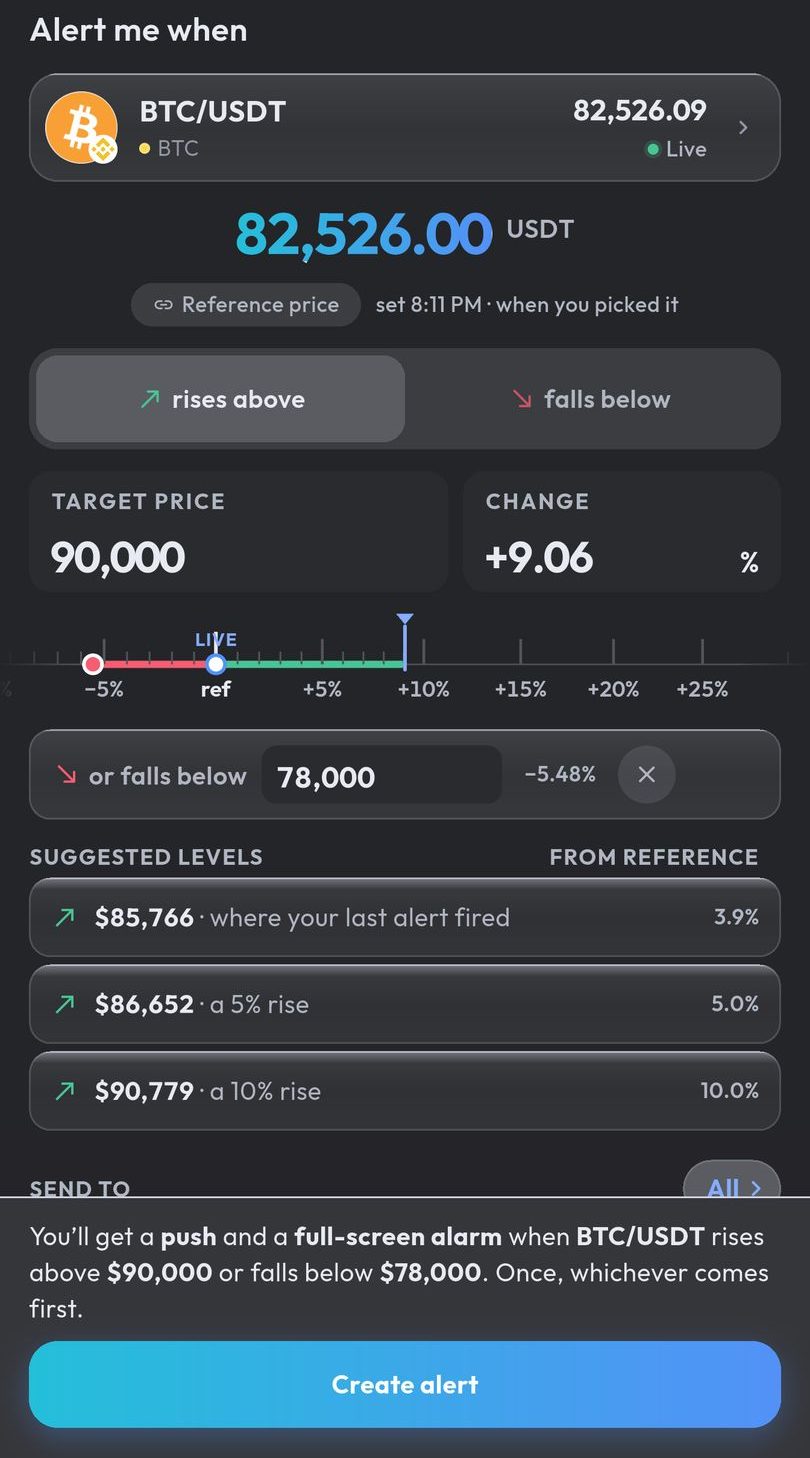
Crypto Alerts & Alarms works the other way round: each alert follows one pair on one exchange, the price you see on Binance, Coinbase, Kraken, Bybit or KuCoin, across over 5,000 pairs and more than 1,200 coins. It also follows any Solana token by name or mint address once it has a live pool on PumpSwap, Raydium, Orca or Meteora DLMM.
- Install Crypto Alerts & Alarms from Google Play.
- Search for the coin and pick the pair you use, for example BTC/USDT on Binance or BTC/EUR on Kraken.
- Set a level to rise above, fall below or both, or a percentage move from the current price.
- It arrives as a push notification; you can make it a full-screen alarm that rings through silent mode on Android, and send it to Telegram too. Then choose whether it fires once or repeats, with a cooldown from 5 minutes to a day.
Alerts are checked on our servers, so they fire with the app closed, and the app never asks for exchange API keys. The trackers are the better choice if you are on an iPhone today (our app is Android only for now; an iPhone version is in development), if your coins trade only on other exchanges or chains (CoinGecko’s Google Play listing says it connects to 700+ exchanges), or if the average across exchanges is the price you actually care about.
Android only for now. An iPhone version is in development.
Common questions
Does CoinMarketCap have price alerts?
Yes, in its mobile app. CoinMarketCap’s help centre lists price alerts among the app’s features, and its store listings say you will be notified when your price targets are met. We found no article in its help centre on how to set one (checked 28 October 2026).
How do I set a price alert on CoinGecko?
On CoinGecko.com, its help centre says to click the “alarm” button on the coin and enter a price or pick a preset percentage. In the app, CoinGecko’s June 2025 guide says to search for the coin, tap the star, tap “Set Alert”, enter a target price and save.
How do I stop CoinGecko alerts for coins I only searched for?
Those are Auto Price Alerts. CoinGecko’s help centre says to go to Settings, then Notification Center, and toggle off “Auto Price Alerts”; for a single coin, tap “Don’t remind me again” after opening that coin’s alert. They are on by default and expire on their own.
Why did my CoinGecko or CoinMarketCap alert fire at a different price from my exchange?
Both trackers price a coin as a volume-weighted average across many exchanges, so their price can sit above or below the pair you use. An alert set on that average can fire before or after your exchange’s pair reaches the same level.
CoinGecko or CoinMarketCap: which is better for price alerts?
It depends on what you need: CoinGecko documents its alerts in more detail, lets you set one on its website as well as in its app, and adds automatic alerts for coins you search for. CoinMarketCap’s pages describe price alerts in its app, but we found no help article on setting one. Both price a coin as an average across exchanges, not as one exchange’s pair.
Last updated: 28 October 2026. Help pages and apps change. If anything here is out of date, email support@appsfromzero.com and we will correct it.